


If you attempt to view the Concourse Syllabus for your course and encounter the error "Could not verify ID token: State not found," please follow the steps below to troubleshoot.
Note: These steps apply to Google Chrome, the preferred browser for Canvas.

- At the top of the browser, in the address bar, click the eye icon.

- On the menu that opens, click the toggle to enable third-party cookies.

- After you enable the setting, it will turn blue.

- The page will automatically refresh, and your syllabus should display properly. *Note: this enables the cookies for 90 days. You will need to enable it again in three months.
Additional Settings to Review:
Chrome Browser:
To ensure everything works correctly, you can also allow third-party cookies by following these steps:
- Open Google Chrome
- Copy and paste chrome://settings/cookies into the address bar of the browser and search
- Scroll down to the “Allowed to use third-party cookies” section.
- Click “Add” and enter the following entries one by one, and ensure there is no space before or after the URL:
- https://[*.]instructure.com/
- https://[*.]campusconcourse.com/
- https://[*.]api.apidapter.com/
- Save the changes and reload Canvas.
Safari Browser:
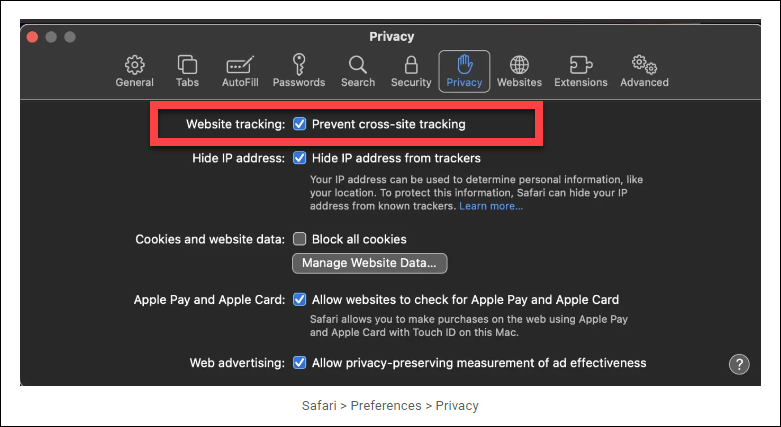
If using Mac Safari, the Prevent cross-site tracking setting is enabled by default, which may contribute to the Could Not Verify ID Token error.
We recommend using Google Chrome for the best experience with Canvas. If you prefer using Safari, follow these steps:
- Open Safari and go to Safari > Preferences.
- Navigate to the Privacy tab.
- Uncheck Prevent cross-site tracking.
- Close the settings and reload Canvas.
Mozilla Firefox Browser
We recommend using Google Chrome for the best experience with Canvas. If you prefer to use Firefox, you’ll need to enable third-party cookies to ensure everything works correctly.
Open Firefox and go to Settings.
- Navigate to the Privacy & Security section.
- Scroll down to Cookies and Site Data and click on Manage Exceptions.
- Add the following entries one by one and click Allow, and ensure there is no space before or after the URL:
- https://instructure.com/
- https://campusconcourse.com/
- https://api.apidapter.com/
- Click Save Changes and reload Canvas.
If viewing issues persist, additional troubleshooting steps are available in the article "Concourse Syllabus - Troubleshooting View Issues."

